MetaTrader 4 and MetaTrader 5 can run on Linux through Wine, but that does not make them native Linux applications. For a practical setup, you need to choose how to run the Windows terminal, confirm that your broker account connects, and test the features you actually use. A chart opening successfully is a start, not an acceptance test.
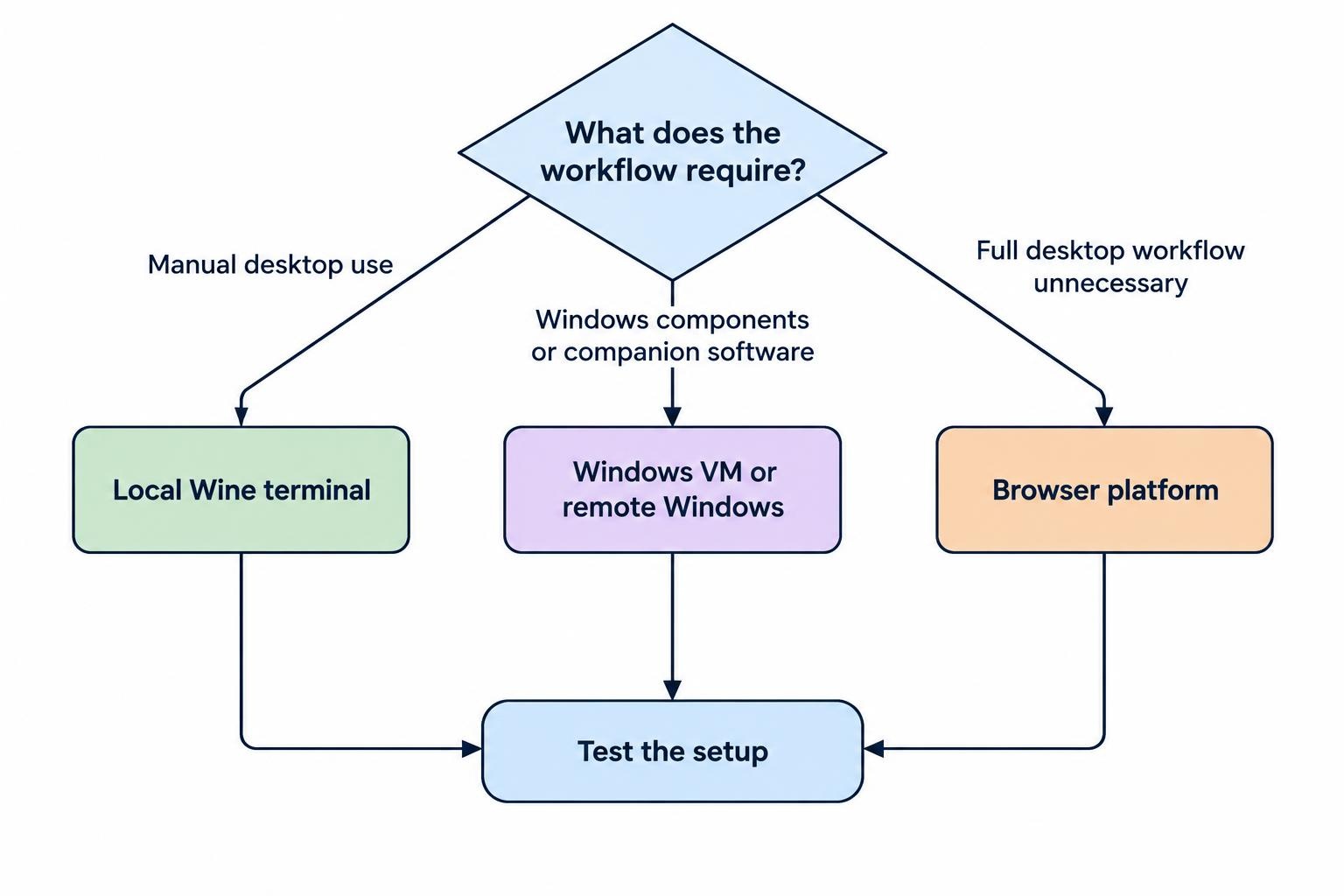
For manual trading, a local Wine installation is a reasonable starting point. For an Expert Advisor with Windows dependencies, a Windows virtual machine or remote Windows computer may be worth evaluating instead. Python integration needs separate attention: getting MT5 onto your Linux desktop does not automatically make its Python package available to Linux Python.
This guide focuses on installation, compatibility, testing and recovery. The broader trading on Linux guide covers the other platform choices available before you commit to MetaTrader.
Choose How You Want to Run MetaTrader
There are three approaches worth assessing: run the desktop terminal locally through Wine, install it inside a Windows virtual machine, or access a Windows installation remotely. A browser platform is another option if you do not need the desktop terminal’s full workflow.
Wine provides a Windows compatibility layer rather than a complete Windows operating system. It translates Windows application calls so that supported software can run on Linux; it is not a promise that every Windows application or extension will work. The distinction is covered in Wine’s description of its compatibility layer.
| Method | When to consider it | What to test first |
|---|---|---|
| MetaQuotes Linux installer | You want a straightforward local desktop installation. | Account connection, charts, updates and required indicators. |
| Wine managed through Bottles | You want separate environments and more visible configuration controls. | Runner compatibility, file access and application launch behaviour. |
| Windows virtual machine | Your workflow depends on Windows components or companion software. | Guest performance, dependencies and behaviour after host suspension. |
| Remote Windows installation | You want the trading terminal separate from your everyday Linux desktop. | Remote access security, reconnection and recovery after a restart. |
If your routine consists of viewing charts and placing orders manually, compare the desktop route with browser-based trading platforms on Linux. Check the actual browser terminal offered for your account rather than assuming it reproduces every desktop feature.
Choose MT4 or MT5 Before Installing Anything
Start with the platform supported by your trading account and required software. Do not install MT5 simply because its version number is higher, then expect an existing MT4 workflow to follow it across unchanged. Confirm the platform, account server and installer with your account provider.
Custom software is often the deciding factor. MT4 programs use MQL4, while MT5 programs use MQL5. Moving between them can require changes to program logic and interfaces; it is not a matter of renaming a compiled file. The differences are documented in the MQL4 to MQL5 migration reference.
Make a short inventory before choosing: terminal version, indicators, Expert Advisors, external libraries, licence tools and any data export or reporting software. Mark each item as required or optional. An optional chart decoration should not dictate the operating environment; a required order management tool probably should.
If you are starting without existing add-ons, test the platform your intended account supports. If you are moving an established setup, preserve a working copy until the Linux replacement passes the same practical checks.
Prepare Linux and Record a Baseline
Record your Linux distribution and release, processor architecture, desktop session and installation method. Keep the terminal build and Wine version alongside those details once installation finishes. This small record becomes useful when an update changes behaviour or you need to reproduce a fault elsewhere.
Check that your distribution is supported by the installation instructions you intend to follow. Do not assume that instructions for an ordinary Intel or AMD desktop apply unchanged to an ARM laptop or single board computer. Confirm that route before spending time on dependencies.
Use your distribution’s software updater for system packages. Ubuntu and Debian instructions are not interchangeable with Fedora instructions, even when a tutorial presents them as generic “Linux commands.” The guide to APT, DNF and Pacman covers that distinction.
For the first installation, keep the setup plain. Avoid adding custom libraries, graphics translation options and several third-party indicators at once. Establish that the unmodified terminal launches and connects before introducing anything else. Troubleshooting is much easier when you have only changed one thing.
Install MetaTrader Using the Official Linux Instructions
Installing MetaTrader 5
The official MetaTrader 5 Linux installation instructions provide a script that detects the distribution, installs an appropriate Wine package and launches the platform installer. The documented distributions include Ubuntu, Debian, Linux Mint and Fedora.
Follow the current instructions on that page rather than copying an old command from a forum. The documented process starts from an ordinary terminal session without administrator privileges. Package installation may request your Linux account password; that does not mean you should start the whole process as root.
- Confirm that the instructions cover your distribution and release.
- Download the installation script from the location linked by the official documentation.
- Review what it will install, particularly repository changes and package installation steps.
- Run it as your normal user and respond to legitimate dependency prompts.
- Complete the MetaTrader installer, then restart Linux as the MT5 instructions direct.
The documentation also identifies Wine Mono and Gecko as components to accept when prompted. Once the terminal starts, check its name and build before entering account details. Save any installation error messages instead of repeatedly rerunning the script and hoping the next attempt has better manners.
Installing MetaTrader 4
The official MetaTrader 4 Linux installation instructions use Wine too. They provide separate installation scripts for Ubuntu and Debian, rather than the distribution list shown in the MT5 instructions. Choose the documented script for your system; do not substitute the other one because the filename looks close enough.
If your account provider supplies its own Windows installer, confirm that it installs the required terminal and includes the correct server configuration. Obtain it through an authenticated account portal or another verified distribution channel. There is no need to trust an unofficial download mirror for software that will handle trading credentials.
Verify that you have installed MT4 before restoring MT4 indicators or Expert Advisors. Keep MT4 and MT5 installations clearly labelled, including their desktop shortcuts and backup folders.
Treat Installation Scripts as Software
A short installation command may download and run a much longer script. Review the download origin and the script’s actions before execution. If a repository, package or permission request is unexpected, stop and investigate rather than approving it just to reach the next screen.
Do not use administrator privileges to work around an unexplained application launch failure. Installing system packages and running a trading terminal are different jobs. Keep those privilege boundaries intact.
Use Bottles When You Need More Control
Bottles is an alternative way to manage Wine environments. It can be useful when you want a clearly named environment for each terminal instead of mixing trading software with unrelated Windows applications. It does not remove the need for Wine compatibility testing.
A typical workflow is to create an application environment, give it a recognisable name, then use its executable launcher to open the Windows installer. The process is illustrated in System76’s Bottles installation walkthrough. Use separate names for MT4, MT5 and experimental setups.
A runner is the Wine implementation selected for an environment. Bottles supports different runners, and its documentation distinguishes general Wine use from Proton’s focus on games. Start conservatively rather than importing a gaming configuration into a trading setup; see the Bottles runner documentation for the available controls.
Once a terminal works, record its runner and settings. Test changes in a separate environment where practical. If you alter the runner, add dependencies and restore an old terminal folder in one session, you have created several possible explanations for the next failure.
File access needs attention with the Flatpak edition. Its sandbox can affect access to installers, exported reports and folders outside its assigned directories. Grant access only to the folders you need rather than exposing your entire home directory. The controls are documented in Bottles’ directory access instructions.
For broader application management, including when a compatibility layer is the wrong tool, use the guide to running Windows applications with Wine and Bottles.
Find the Data Folder Before Moving Your Setup
The executable’s installation folder and the terminal’s active data folder are not necessarily the same location. In MT4, use File > Open Data Folder to locate the files belonging to the running terminal. This distinction is documented in the MT4 data directory reference.
Locate and record the active data folder in each terminal you install. Do not rely on a path copied from another computer, especially if you have multiple installations. A folder can look convincing while belonging to a terminal you no longer use.
When migrating, begin with templates and chart profiles, then add indicators and Expert Advisors individually. Put each program in the appropriate folder for that terminal and confirm it appears where expected. Keep original downloads and licence details separately so you can rebuild without depending on one copied directory.
Close the terminal before taking a migration copy. Preserve the original until you have reopened the destination, checked the restored settings and confirmed that required programs load without errors.
Keep the Windows paths shown inside Wine distinct from their Linux storage locations. If that mapping is unfamiliar, the guide to the Linux filesystem and directory structure provides the background. A little care here prevents a lot of copying files into the wrong place.
Validate the Installation With a Demo Account
Use a demo account for installation testing. The immediate question is whether the platform works correctly in your environment, not whether a strategy performs well. Keep those two tests separate.
Enter the exact account number, password and server name supplied for that account. An incorrect server can prevent connection even with the correct login. Also check whether you have a trading password or an investor password intended for viewing rather than placing orders. These account distinctions are covered in the MetaTrader account connection help.
Work through a repeatable acceptance test:
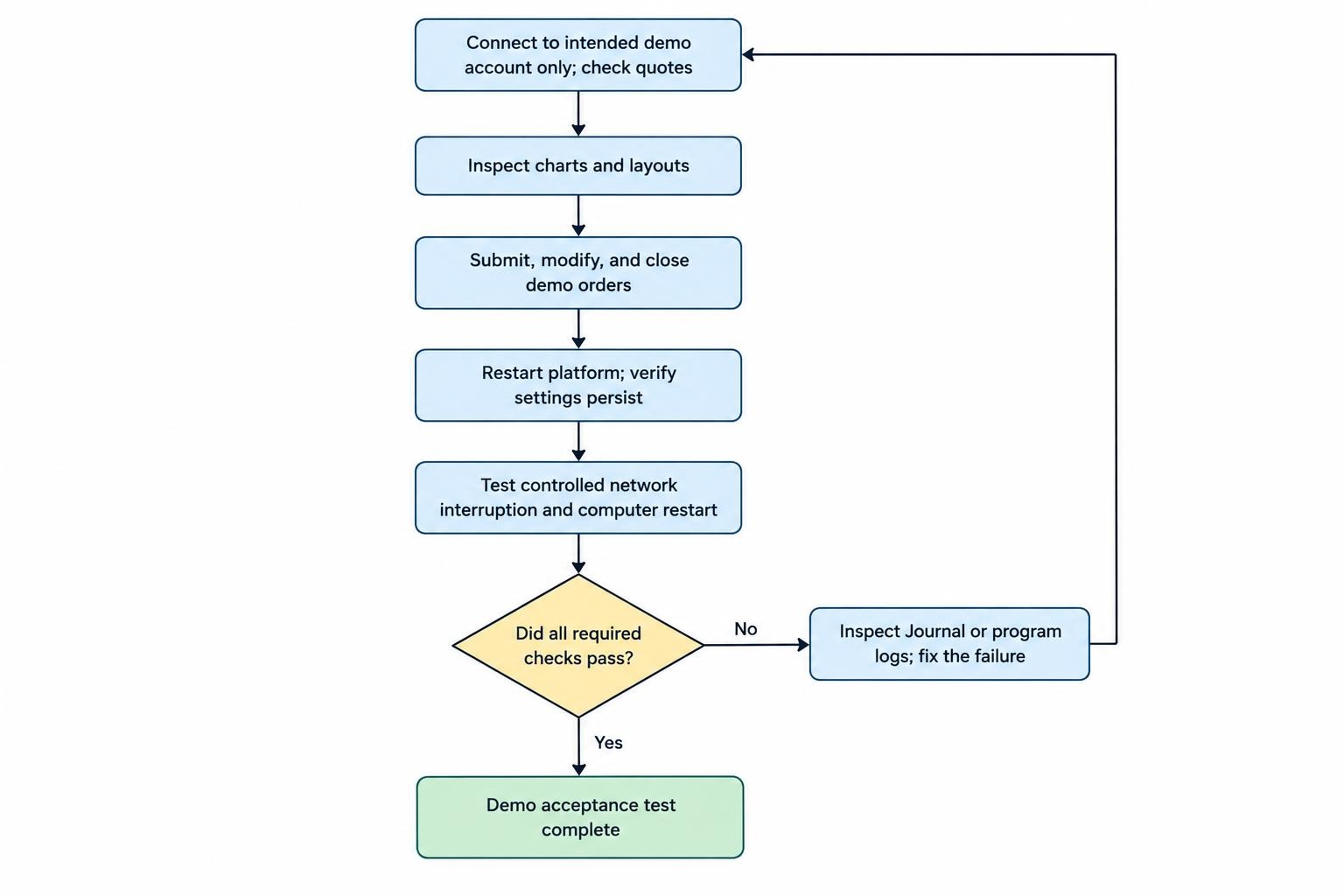
- Connection: confirm the intended demo account and server, then check that relevant quotes update during market hours.
- Charts: open the instruments and timeframes you use, change layouts and verify that chart objects remain usable.
- Demo orders: test submitting, modifying and closing an order, and inspect the recorded results.
- Persistence: close the terminal normally, reopen it and check that profiles and settings return.
- Recovery: test a controlled network interruption and a computer restart without a live account attached.
Inspect the platform’s Journal and any program logs during these checks. Record the action, time and error message when something fails. “The order window froze after reconnecting” is useful; “Linux broke it” is less helpful.
Repeat the same checks after adding an indicator, Expert Advisor or external library. A clean terminal passing its tests does not establish that every extension will behave correctly.
Test Expert Advisors and External Dependencies Separately
For an automated workflow, installation is only the first stage. Establish whether the Expert Advisor loads, whether its settings survive a restart and whether its logs show the expected actions. Begin with automated trading disabled while you inspect the configuration.
Ask the software provider about required DLLs, external executables, network services, licence checks and supported environments. A program’s description may focus on trading logic while leaving its Windows dependencies in the small print. Those dependencies belong in your test plan.
Do not enable DLL access or other permissions simply because an error message suggests it. Confirm what component needs the permission and why. Test the required component in the same environment as the terminal, rather than assuming an installation elsewhere on Linux satisfies it.
Also distinguish server-held order instructions from actions performed by the local terminal. In MT5, trailing stop adjustments run in the platform, unlike server-side Stop Loss and Take Profit processing. If the platform stops, its trailing logic stops; an already submitted stop level remains separate from further adjustments. The behaviour is documented in the MT5 trailing stop rules.
For unattended operation, test restarts and reconnections with the exact automation you intend to use. Check for duplicate instances before enabling it after recovery. Neither a successful backtest nor an uneventful afternoon establishes reliable unattended operation.
MT5 Python Integration Is a Separate Compatibility Problem
A running MT5 terminal under Wine does not mean your normal Linux Python environment can import its official integration package. At the time checked, the official MetaTrader5 package files on PyPI are Windows x86-64 wheels, not native Linux wheels. Do not treat installation failures in Linux Python as evidence that you just need another virtual environment.
The integration communicates with the MT5 terminal through interprocess communication. It is not simply a standalone HTTP client that connects directly to a broker. Its architecture and available functions are described in the official MT5 Python integration reference.
Choose the execution boundary deliberately. One approach to evaluate is keeping Windows Python and MT5 together inside a Windows guest or remote Windows system, while using Linux for research and development. Another is a carefully tested Windows Python setup under Wine. Neither should be treated as working until imports, terminal connection and required operations pass your tests.
Third-party bridges add another component to review. Check who maintains the bridge, how it authenticates requests, where credentials are stored and what happens when either side restarts. Avoid exposing a trading bridge publicly just to make the connection convenient.
Keep package selection, research environments and data handling separate from this terminal compatibility work. The guide to setting up Python for algorithmic trading on Linux covers that broader development workflow.
Troubleshoot One Layer at a Time
The Installer or Terminal Will Not Start
Record whether the failure occurs during package installation, Windows setup or terminal launch. Preserve the installation output and check that you are launching the intended environment. Avoid installing a second Wine package from another repository before identifying what failed.
If a shortcut fails but launching through the environment manager works, compare the selected executable and environment. A stale shortcut is a different problem from an application crash, and replacing the whole installation is an expensive way to diagnose it.
The Terminal Opens but Cannot Connect
Recheck the platform, account server and credentials before changing Wine settings. Confirm whether the account connects through another approved access method, where available. Then investigate network filtering, proxy settings and the exact messages in the Journal.
Do not disable the firewall wholesale as a first response. A controlled test should answer a question, not remove protections and leave you guessing which change mattered.
Charts Are Slow or the Interface Looks Wrong
Test a clean profile with fewer charts and no custom indicators. Observe CPU, memory and disk activity before blaming graphics compatibility. The guide to monitoring Linux resource usage helps separate application load from pressure elsewhere on the computer.
For tiny text, clipped controls or awkward window placement, change one display or Wine scaling setting at a time. Test on a single monitor as a comparison. Avoid adding graphics overrides unless you have a reason and a way to reverse them.
Files Cannot Be Saved or Restored
Check the active data directory, Linux ownership and any Flatpak directory permissions. Do not respond by granting broad write access or running the terminal as root. The guide to Linux file permissions and ownership covers the checks needed to correct access without opening unrelated files.
Keep a short change log throughout troubleshooting. Record what changed and whether the result improved, worsened or stayed the same. Reversing an ineffective change keeps the next test meaningful.
When a Windows Virtual Machine Makes More Sense
Consider a Windows virtual machine when a required component depends on Windows behaviour that you cannot reproduce reliably through Wine. This is a different approach: the guest runs its own operating system rather than relying on a Windows compatibility layer.
QEMU provides the virtual machine model, with KVM available as an acceleration option on Linux. The architecture is documented in the QEMU system virtualisation introduction. Evaluate a supported Windows installation and the requirements of your terminal and companion software before allocating resources.
Allocate enough memory, processor capacity and storage for the workload while leaving Linux usable. Test with the real chart count and add-ons you need, not just an empty terminal. Heavy backtesting and ordinary manual chart use should have separate resource expectations.
A local virtual machine is not an uptime service. Test what happens when the Linux host suspends, restarts or loses network access. For unattended work, review the entire chain rather than assuming that placing Windows in a window solves availability.
The guide to running virtual machines with KVM and QEMU covers guest setup. Keep that infrastructure work separate from the MetaTrader acceptance tests, then validate them together.
Protect Credentials and Make Recovery Reproducible
Wine can run malicious Windows software too; Linux is not a safety certificate for an unknown executable. The Arch Linux Wine documentation includes this warning. Treat indicators, robots, installers and licence utilities as software that needs verification before execution.
Protect account details in screenshots, support bundles and copied configuration folders. Before sending logs to support, review them for account identifiers and private information. For scripts and bridges, apply the controls in protecting trading credentials and API keys on Linux.
Keep a recovery record containing the distribution release, installation method, terminal build, runner version, data location and required add-ons. Store trusted installation files and licence information where you can retrieve them if the desktop fails.
Back up the configuration and test restoration into a separate environment with automated trading disabled. Do not mistake an untested archive for a recovery plan. The guide to backing up and restoring a Linux desktop covers the wider system recovery work.
Apply updates during a maintenance window when you can retest the terminal. Preserve a recovery path before changing the operating system, Wine runner or application dependencies. Avoid freezing an entire workstation indefinitely to protect one application; use a controlled process for Linux security updates and patching.
Choose the Setup You Can Maintain
Start with the official installer if you need a local terminal and have no unusual dependencies. Evaluate Bottles when environment management helps. Consider Windows in a virtual machine or on a remote system when required software makes the compatibility route impractical.
If MetaTrader is optional, compare native Linux trading and charting software before committing to a Windows compatibility setup. Choose on account access, required features and maintenance effort, not installation novelty.
The useful benchmark is a setup that connects correctly, preserves its settings, runs the required tools and can be recovered after failure. Getting the terminal onto the desktop is the easy part to photograph. Keeping it predictable is the part worth testing.