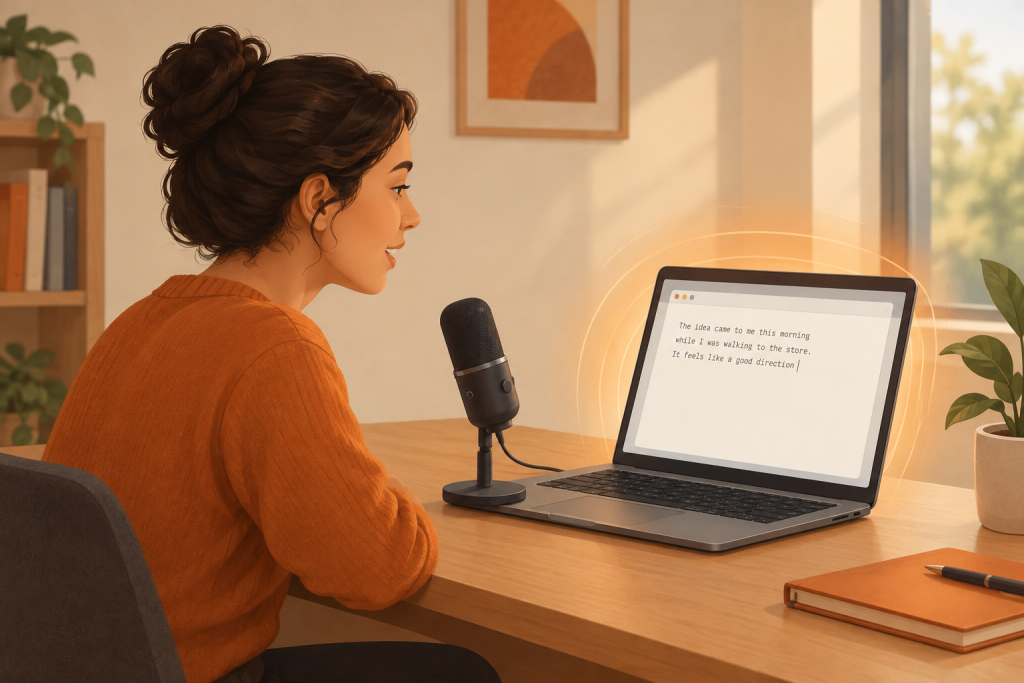
Ubuntu has introduced Myna, an optional speech-to-text feature that turns spoken words into text inside desktop applications. Canonical made the technology preview available on October 12, 2026. Recognition runs on the computer rather than through an external transcription service, and the intended interaction is straightforward: focus a text field, press a configured shortcut and speak.
The Myna technology preview announcement sets a clear boundary: this is dictation, not a voice assistant. Myna does not control the desktop through spoken commands. Its immediate purpose is more practical: provide another way to enter text without making cloud transcription part of the process.
That distinction matters. Writing an email by speaking and asking a computer to manage your inbox are very different jobs. Myna tackles the former, with a deliberately narrow scope and room for community testing before a stable release.
How Myna Fits Into the Ubuntu Desktop
A desktop dictation feature has to do more than recognize words. It must capture the intended microphone, respond to activation, show its status and deliver the transcript to the right application. Recognition quality is only one part of that chain.
Myna separates those responsibilities. Its client handles microphone capture and activation, communicates with a recognition backend and inserts the resulting text into the focused application. The implementation uses PipeWire for audio capture and IBus for text input, with an activity indicator providing feedback. These components are documented in the Myna client architecture and desktop integration notes.
For users, the useful result is the possibility of dictating where they already work, rather than moving every paragraph through a separate transcription window. An email composer, a document editor and a browser form are sensible places to evaluate that promise. They should still be tested individually; successful input in one application does not establish compatibility with every other application.
Keep the distinction between recognizing and inserting text in mind when troubleshooting. If the microphone captures speech but no words reach a document, replacing the recognition model may not address the problem. The failure could sit further along the input path.
Which Ubuntu Systems Can Try the Preview?
The announced preview environment is narrower than “any Linux desktop.” Canonical names the following combinations:
| Requirement | Announced preview coverage |
|---|---|
| Ubuntu releases | 24.04 LTS, 26.04 LTS and 26.10 |
| Architecture | amd64 and amd64v3 |
| Desktop session | GNOME on Wayland |
| Optional acceleration | Supported NVIDIA GPUs |
Do not assume another desktop environment, an X11 session or an ARM computer receives the same preview coverage. A working community configuration and an announced test environment are not interchangeable.
Check the session before changing packages or searching for alternative models. That simple step can prevent a long troubleshooting detour based on the wrong starting point.
Desktop performance is a separate question from dictation compatibility. Our coverage of GNOME 51’s desktop performance work addresses the surrounding desktop rather than Myna’s recognition quality.
What Local Speech Recognition Protects
Myna processes speech locally through an inference snap. After the required model is installed, transcription does not require an internet connection. Audio is processed in memory, discarded after use and not uploaded to an external transcription service. The protection applies to recognition, not everything that happens afterward; the receiving application retains its own storage and network behavior. Those boundaries appear in Canonical’s Ubuntu 26.10 security details on local speech recognition.
Consider two hypothetical uses. Dictating into an offline document keeps the transcription step separate from a remote service. Dictating into a webmail composer still places the finished words inside a networked application. Local recognition does not turn webmail into an offline notebook.
The same distinction applies to shared documents, messaging clients and browser forms. Before dictating confidential material, evaluate the destination as well as the recognition engine. Where does the document save? Who can access it? Does the application synchronize its contents?
For workplace use, keep software approval and information handling requirements separate from the technical claim that recognition runs locally. An organization may still require approval for preview software, downloaded models or the application receiving the text.
Local processing provides a useful privacy boundary. It should not become shorthand for “nothing typed here can ever leave this computer.”
Installing Myna Without Treating It as Finished Software
The current installation route uses Canonical’s desktop team PPA to provide the Myna Settings package, named myna-config. After installation, users open Myna Settings from Activities and complete the guided setup. The official Myna repository and installation instructions also carry a development warning: core concepts, protocols and features may change before a stable release.
That warning deserves more attention than it usually receives. A technology preview is an invitation to evaluate software, not a promise that its configuration and behavior will remain fixed.
A sensible setup sequence is to confirm the desktop environment, install through the published route, complete model setup and choose a shortcut that does not conflict with everyday application controls. Then test in an empty document before using it in a live conversation or shared workspace.
Make the first test deliberately ordinary. Speak a short paragraph containing a name, a date and a few words you use frequently. Check whether the text arrives in the intended field, whether the status feedback is clear and whether stopping dictation behaves as expected.
Avoid making an unfamiliar preview your only input method. Keep an established route available while assessing it, particularly on a computer needed for work or study. There is little value in discovering a setup problem five minutes before a deadline.
Choosing Between Speech Recognition Models
Myna offers recognition engines including Parakeet, Whisper and FunASR. The choice involves language coverage, accuracy and hardware requirements, rather than a single engine being the right answer for everyone.
Model versions matter too. NVIDIA’s Parakeet TDT 0.6B v3, for example, documents support for 25 European languages and automatic punctuation. Those are properties of that model, not a universal language guarantee for every Myna configuration. The NVIDIA Parakeet v3 model card illustrates why checking the exact model is more useful than recognizing an engine’s name.
Start with your language and writing task. A person composing English emails has different evaluation needs from someone switching between languages or dictating specialist terminology. Test the vocabulary that matters to you, including surnames, place names, abbreviations and product names.
Then assess responsiveness on your own computer. Separate the wait for an initial result from the delay during repeated use. Also check whether dictation remains comfortable when the applications you normally need are open. A test performed with an otherwise empty desktop may not represent your working day.
If setup offers an accelerated engine for supported hardware, compare the available choices before making any purchasing decision. A GPU option is not, by itself, a reason to replace a laptop. Let an actual workload identify a performance problem before asking a hardware upgrade to solve it.
The most useful model is the one that produces usable text with tolerable correction effort on the machine you already have.
Accessibility Requires More Than Accurate Words
Speech input can provide another route for someone who finds extended keyboard use difficult. But evaluating accessibility through transcription accuracy alone misses much of the interaction.
Activation is an obvious example. Can the intended user comfortably operate the chosen shortcut? Can they stop dictation without losing their place? Is the listening state clear enough to avoid uncertainty about whether the microphone is active?
Correction matters just as much. A paragraph that needs several awkward edits may be less useful than a shorter, more predictable input method. Test the complete sequence: begin dictation, speak, stop, inspect the result and correct it.
Do not equate dictation with hands-free computer control. Treat text entry, cursor movement, application switching and editing as separate requirements when planning an accessible setup. A tool that addresses one of those tasks does not automatically address the others.
For an accessibility assessment, use the person’s real tasks and preferred working arrangements. A polished demonstration paragraph is a poor substitute for composing an actual message, filling in a familiar form or editing a document. The test should answer whether the interaction works for that person, not whether it looks impressive in a demonstration.
Where Myna Is Worth Testing First
Drafting ordinary prose is a sensible starting point. Try an email that has not yet been addressed, a paragraph in a local document or notes that can be reviewed before sharing. These tasks provide space to inspect the output without immediately publishing it.
For a writer, the useful comparison is not simply speaking versus typing. Compare the time needed to produce an acceptable paragraph, including revisions. A transcript that appears quickly but needs extensive repair has not necessarily saved time.
For a developer, begin with issue descriptions, documentation drafts or explanatory notes rather than executable commands. Keep code, paths and command syntax under close review. Treat dictation as draft input, not as permission to execute whatever appears.
For someone completing forms, test fields containing names, addresses and numbers separately from free text. Before submitting anything, compare the recognized result with the intended entry. A plausible sentence and a correct account number are different standards of success.
Shared offices introduce another practical question: is speaking the text appropriate in that space? Local recognition protects the processing route, not the words spoken aloud. Choose the setting with the same care as the software.
How to Produce Useful Preview Feedback
A useful test report distinguishes recognition problems from setup and application problems. “It does not work” leaves too many possibilities open.
Record the Ubuntu release, desktop session, selected engine and model, microphone and receiving application. Describe the steps that led to the failure and what appeared instead of the expected result. If the issue occurs only in one application, say so.
When comparing models, keep the task reasonably consistent. Use the same passage, microphone position and room conditions, then examine both the text and the correction effort. Change one variable at a time where practical.
Include ordinary writing rather than only easy demonstration phrases. A short passage with dates, punctuation, abbreviations and familiar technical terms can reveal whether the tool suits your work. Avoid putting confidential material into public reports or attaching recordings without checking their contents.
It is also worth recording successful behavior. Knowing that a configuration works in a document editor but fails in a browser form gives developers a clearer boundary to investigate than a general complaint about accuracy.
Does Myna Justify an Ubuntu Upgrade?
The preview’s availability on Ubuntu 24.04 LTS and 26.04 LTS means that trying Myna does not, by itself, establish a need to move to Ubuntu 26.10. Assess the dictation feature and the operating system upgrade as separate decisions.
A desktop upgrade affects more than text entry. Keep that broader assessment distinct from Myna testing, including changes covered in our article on Ubuntu 26.10’s switch to Rust-based core utilities.
Myna’s immediate value is a focused proposition: local speech recognition connected to desktop text input. The next question is practical rather than promotional. Does it recognize your speech, deliver text reliably in your applications and reduce the effort needed to finish a task? Test those three things before building a daily routine around the preview.