
Linux 7.3 was released on October 18, 2026, bringing changes to CPU scheduling, Btrfs storage performance and Intel display support. The Linux 7.3 release announcement marks the end of its development cycle, but desktop users face a more practical question: does this update solve a problem on their computer?
The strongest reasons to pay attention are better handling of competing workloads, improvements to certain file operations and display driver fixes. None amounts to a promise that every application will run faster. For most users, the sensible route is to take Linux 7.3 through their distribution’s supported updates, then check the workloads and hardware they actually use.
What Changes When You Update the Kernel?
The kernel manages CPU time, memory, storage access and hardware drivers. Updating it changes the machinery beneath the desktop rather than replacing the desktop itself. Your applications, settings panels and file manager can look exactly the same after a kernel update.
That distinction helps set expectations. A kernel improvement may reduce delays while several applications compete for resources, correct a display problem or change how a filesystem handles an operation. It does not automatically redesign an application, remove its own bottlenecks or make an overloaded computer feel new.
Judge this release against a problem or requirement, not just its version number. Useful questions include whether your desktop becomes unresponsive during background work, whether a storage workload stalls, or whether an external monitor behaves inconsistently. Write down the symptom before updating. “The screen briefly goes black after waking with the dock connected” gives you something to check. “Perhaps everything could be faster” does not.
CPU Scheduling Changes Target Competing Workloads
Linux 7.3 changes how the scheduler handles tasks arranged into control groups, or cgroups. The work known as “flatten the pick” moves group scheduling to a single runqueue and introduces several methods for distributing group weights. The default method is named concur. Other changes address the scheduling latency of short time slice tasks, CPU clusters with unequal processing capacity and the selection of fully idle cores. These changes are detailed in the scheduler maintainer’s Linux 7.3 update request.
The practical inference is that responsiveness under contention deserves more attention than an isolated application benchmark. A useful comparison would be your normal desktop session while a repeatable background job runs. Keep the applications, power settings and background work unchanged between tests.
Do not change scheduler settings at the same time. Begin with your distribution’s defaults; otherwise, you are comparing both a kernel and a configuration change. If you cannot identify a repeatable difference, there is no reason to manufacture one. A version number is not a benchmark result.
Btrfs Receives Targeted Performance and Safety Changes
Btrfs has some of the clearest storage changes in this release. Linux 7.3 uses an iomap bounce buffer for certain direct I/O operations instead of falling back to buffered I/O. It also removes an unnecessary delay in one non-SSD logging path, avoids unnecessary hole detection during some full file synchronizations and reduces locking around extent readahead.
The Btrfs project’s kernel change record reports large improvements for selected sample workloads, including roughly fivefold gains in two narrow cases. Those figures describe particular operations, not a fivefold faster desktop or SSD.
There are compatibility details too. The older free space cache implementation is disabled by default, although filesystems using it still work. The recovery option rescue=usebackuproot now requires a read-only mount, and the deprecated standalone usebackuproot option has been removed.
If you use Btrfs, compare a familiar file operation before and after the update. Keep the dataset unchanged. Do not combine the comparison with filesystem conversion, recovery attempts or changes to mount options.
Intel Display Work Covers More Than New Hardware
The Intel display changes include Nova Lake support work for the Common Mode Timing Generator and the DC3CO low power state. The same development work also includes fixes involving display suspend and resume, color processing and refresh rate changes on variable refresh rate laptop panels. The Intel display driver merge history for Linux 7.3 records these updates.
New platform support and fixes for existing display behavior serve different users. If you are evaluating a new computer, investigate support for its exact components rather than treating a processor family name as a complete compatibility statement. If your existing laptop has a display fault, use that fault as the test case.
Check the combinations you depend on: the internal panel alone, an external monitor through a dock, changing refresh rates and waking with the lid closed. Avoid replacing your display configuration during the comparison. The aim is to find out whether the kernel changes an established behavior, not whether an entirely different setup works.
Kernel Responsiveness Is Not the Same as Desktop Frame Scheduling
A desktop update can contain several independent performance changes. Ubuntu’s release notes identify GNOME 51 frame scheduling improvements intended to make animations smoother under load, alongside other desktop changes. Those are separate from the kernel scheduler work in Linux 7.3; the distinction is visible in the Ubuntu 26.10 release notes.
Our coverage of GNOME 51’s reworked frame scheduling deals with that desktop side of responsiveness. Keep the distinction in mind when judging an upgrade that changes both the kernel and the desktop session.
If your distribution offers an easy way to boot the previous kernel without changing anything else, use it for comparison. Keep the same desktop session, applications and display settings. That gives you a cleaner answer than comparing two complete operating system installations and attributing every difference to Linux 7.3.
The same separation applies to command-line tools. Ubuntu’s move to Rust-based core utilities concerns programs outside the kernel. Treat application changes and kernel changes as separate parts of an upgrade investigation, even when they arrive through the same update interface.
Distribution Packages Matter More Than the Upstream Download
Desktop availability is not theoretical: the Kubuntu 26.10 release notes list Linux 7.3 and identify the release image’s kernel package as 7.3.0-9.9. That is a distribution package version, rather than simply the upstream release name.
For your own machine, check your distribution’s update interface and release documentation. Do not assume that another distribution’s availability, package name or installation procedure applies to yours. A guide that starts with downloading an upstream archive may be answering a different question from “How should I update this desktop?”
Prefer the supported package route unless you have a clear reason to do otherwise. Before accepting the update, check whether your distribution lists a known issue affecting your hardware or installation. Give extra attention to any separately installed driver or system component that depends on the kernel.
Also distinguish installing a package from testing the running system. After rebooting, confirm the active kernel version through your distribution’s system information tools. Record the complete package version, not just “7.3,” so a later comparison or bug report identifies the build you used.
A Practical Upgrade Check
Make the first reboot a planned test rather than an interruption between meetings. Choose a time when you can spend a few minutes checking the computer and, if necessary, return to the previous setup.
Before updating, save your work and make a current backup of files you cannot replace. Check your distribution’s instructions for retaining and selecting an earlier kernel. Do not assume a recovery option exists simply because an installation guide mentions one; verify the procedure for your machine before you need it.
A short test plan is more useful than opening twenty applications at random:
- Startup: check sign-in, storage access and any disk encryption prompt you normally use.
- Displays: test your usual resolution, scaling, refresh rate and monitor arrangement.
- Connections: try Wi-Fi, wired networking, Bluetooth and any dock you depend on.
- Audio and input: check the microphone, speakers, headset, touchpad and external input devices.
- Power transitions: suspend and resume, then repeat with your normal peripherals connected.
- Real work: run a representative application or task that matters to you.
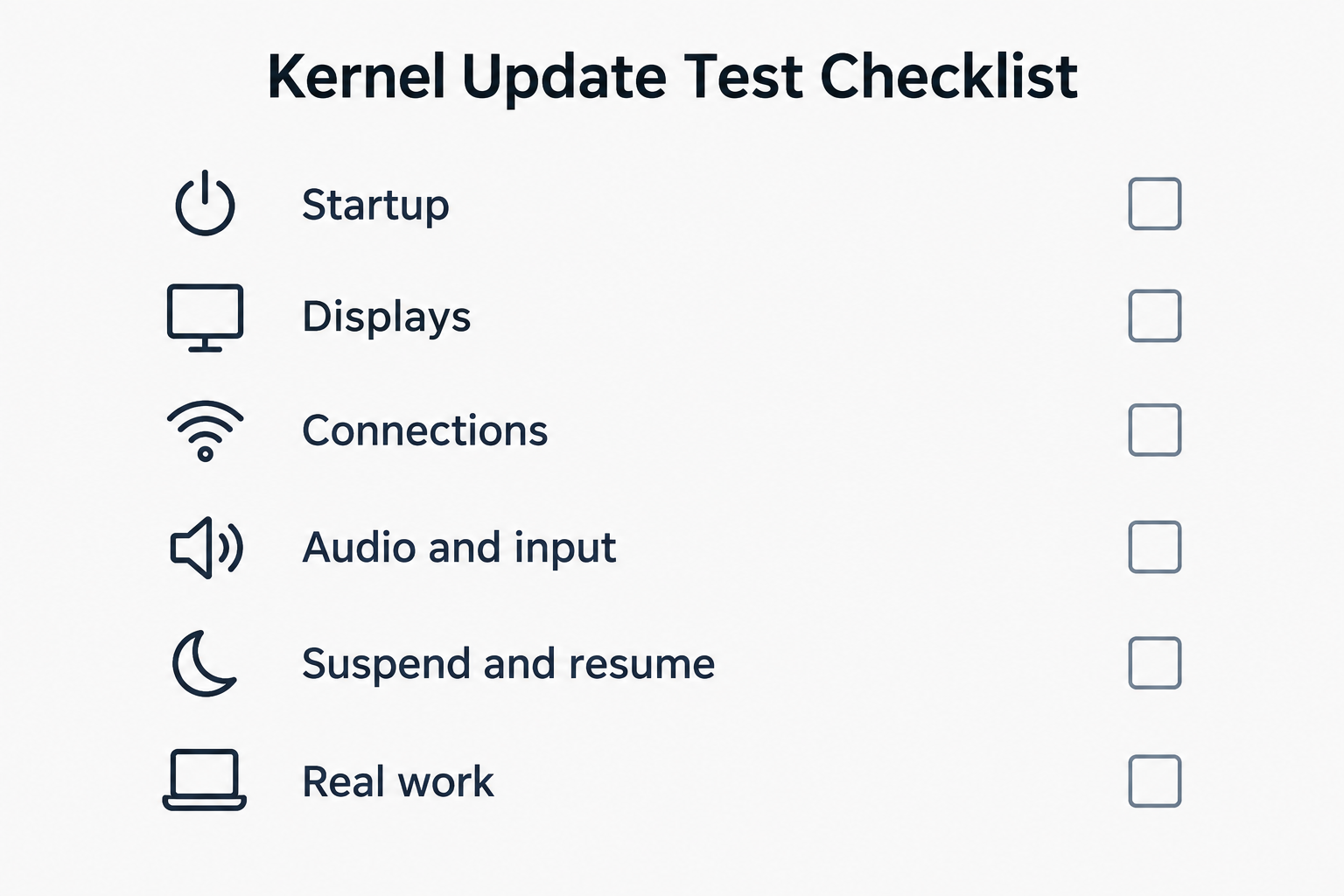
Keep the test proportional to the computer’s role. A laptop used for video calls needs a different check from a desktop used for editing large projects. Test the things that would cause trouble if they failed tomorrow, not every feature mentioned in a release article.
If you want a performance comparison, decide what you will measure beforehand. Use the same files, application settings and power conditions. Repeat the task rather than trusting one unusually good or bad run. Record completion time where that matters, but also note visible pauses and failures. A faster result with broken suspend is not an uncomplicated improvement.
How to Handle a Regression
A regression means that a practical use case which worked with an earlier kernel works worse, or stops working, with a newer kernel built with a comparable configuration. The kernel’s compatibility policy covers interfaces exposed to applications; it does not provide the same guarantee for internal interfaces used by external kernel modules. The kernel documentation on reporting regressions sets out both distinctions.
If something breaks, compare the last working kernel with the first affected one while keeping the rest of the setup unchanged. Record the full versions, affected hardware, steps needed to reproduce the fault and relevant logs. For an upstream regression report, the documentation requests a subject beginning with “[REGRESSION]” and notification to the regressions mailing list.
For a distribution-provided package, begin with that distribution’s reporting process. Describe what changed and what you tested rather than guessing at the faulty subsystem. “Audio disappears after the second resume, and returning to the previous kernel restores it” is a useful observation. A theory about the cause can wait.
Should Desktop Users Install Linux 7.3?
Install it when your distribution offers it through the supported update path and you have checked the issues relevant to your setup. Give it closer attention if you have a repeatable problem that matches the changes discussed here. There is less reason to replace a working, supported configuration manually just to obtain the newer version number.
Separate the decision to accept routine supported updates from the decision to perform an experimental kernel installation. The latter deserves a clear purpose, a comparison plan and a recovery route. Without those, troubleshooting can turn into a collection of changes nobody remembers making.
The useful result is straightforward: your normal work runs correctly, your hardware behaves as expected and any claimed improvement survives a fair comparison. For a desktop kernel update, an uneventful reboot followed by an ordinary working day is a perfectly respectable outcome.