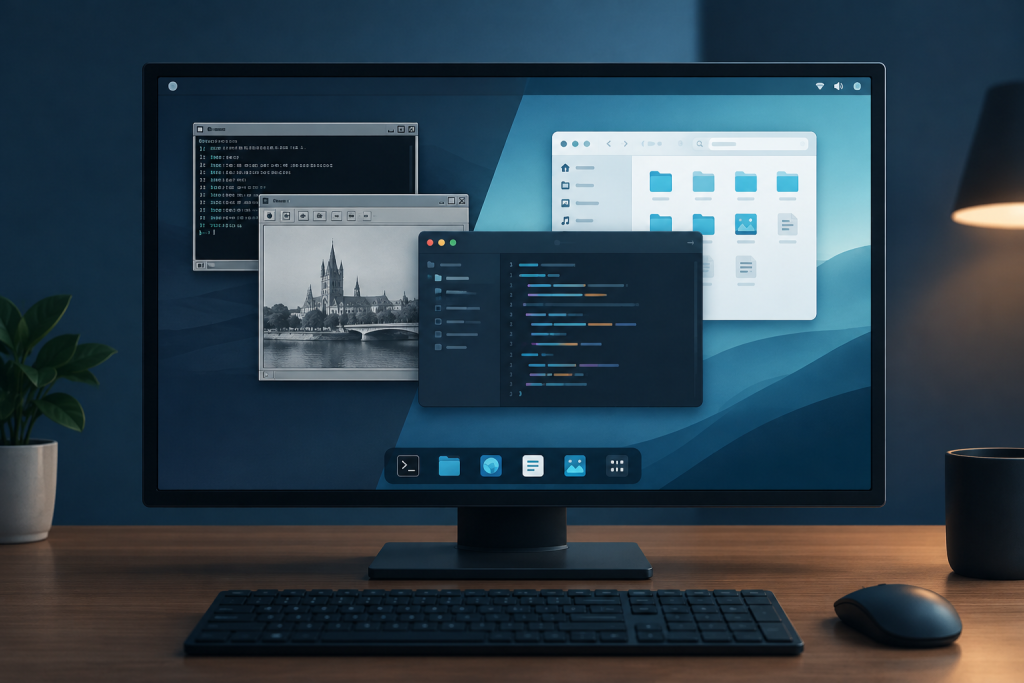
KDE Plasma 6.8 removes the Plasma X11 desktop session, but it does not remove support for running X11 applications. Released on October 14, 2026, the desktop now uses Wayland for its graphical session, with Xwayland handling applications that still depend on X11. KDE applications also retain support for running on X11 in other desktop environments. The distinction is set out in the Plasma 6.8 release announcement.
For users already running Plasma on Wayland, the session removal is not another migration. For anyone still choosing Plasma X11 at the login screen, it removes a familiar fallback. That makes the upgrade worth checking against actual work habits, especially screen sharing, automation, remote access and restoring a desktop after a restart.
The useful question is not simply whether an older application opens. It is whether the application still completes the tasks you depend on.
What Plasma 6.8 Removes, and What Remains
The change concerns the desktop session rather than every application using the older display system.
| Component or use case | Position in Plasma 6.8 |
|---|---|
| Plasma desktop session using X11 | Removed |
| Plasma desktop session using Wayland | The supported session |
| Applications requiring X11 | Supported through Xwayland, subject to compatibility |
| KDE applications running on another X11 desktop | X11 support continues |
Do not treat this as a reason to replace every older program. Start with a short inventory of applications that matter to you, then identify which ones interact with the desktop rather than just displaying their own windows.
An older document editor and a utility that rearranges other applications’ windows present different migration questions. Test the editor by opening, editing and saving representative documents. Test the window utility by checking the complete arrangement it is supposed to produce. A successful launch is useful evidence, but not a complete compatibility test.
How Xwayland Keeps Older Applications Working
Xwayland is an X server that operates as a client of a Wayland compositor. An X11 application connects to it using the interface it expects, while the compositor integrates the resulting window into the desktop. In its usual desktop mode, Xwayland windows sit alongside native Wayland windows rather than inside a separate desktop window. The official Xwayland architecture documentation describes this arrangement and its compatibility boundaries.
That boundary matters. Xwayland supports application windows; it does not reproduce an entire X11 desktop environment. Replacing the active window manager with an old X11 window manager, for example, is not equivalent to running an older editor.
It is not a separate security container either. Applications sharing an Xwayland server are not automatically isolated from one another, even though their relationship with native Wayland applications differs.
For migration planning, divide software into ordinary applications and desktop integration tools. Give both a test, but spend more time on software that captures screens, handles input, places windows or controls other programs. Those functions deserve their own acceptance checks.
Why KDE Is Moving the Desktop to Wayland
Under Wayland, the compositor also acts as the display server. It receives input, determines which window should receive an event and coordinates the presentation of application content. This differs from the separation between the X server and compositing manager in an X11 desktop. The Wayland architecture overview details the change in responsibilities.
The engineering argument for concentrating on one session follows from that split: fewer parallel desktop implementations should mean fewer places where the same feature needs separate work. That is a development expectation, not a benchmark result or a promise that every machine becomes faster.
Users should judge the result by their workload. A cleaner implementation does not compensate for a missing function that someone needs every morning. Equally, keeping an alternative session listed at login is not, by itself, evidence that it receives the same development attention as the default.
The Workflows That Need Extra Attention
Session Restore and Window Placement
Plasma 6.8 does not deliver complete parity with the former X11 experience. Session and window position restoration remain an acknowledged gap. On October 18, 2026, KDE developer Nate Graham confirmed that restoration support had not been completed across all layers of the software stack in time for 6.8. The KDE developer discussion of Plasma 6.8 session restoration separates this unfinished work from the broader decision to retire the X11 session.
Keep three tests separate: whether an application starts again, whether it restores its documents or tabs, and whether its windows return to the expected monitor and virtual desktop. Passing one does not establish that the others work.
Before testing, save documents and bookmark anything that exists only in an open browser tab. Record your usual arrangement if reconstructing it would take time. Then perform a normal logout and login rather than checking only an application restart.
For a workstation spread across several displays and virtual desktops, repeat the test with the full working arrangement. A single empty browser window is a poor stand-in for a busy working day.
Screen Sharing and Recording
The desktop portal provides a standard route for applications to request screen capture. Its ScreenCast interface supports selecting capture sources and obtaining PipeWire streams; starting a session typically presents a user selection dialog. These operations are defined in the XDG ScreenCast portal specification.
Test the exact combination you use for meetings or recording. Share a whole display, then a single application window. Check whether the intended content appears at the receiving end, whether the pointer is visible when needed, and whether audio behaves as expected.
Do not save this test for the opening minute of a presentation. A private test call is considerably less entertaining for everyone involved.
If capture fails, record which application and package version you tested, what you selected in the sharing dialog and what the recipient saw. “Black image after selecting a window” is a much better starting point for troubleshooting than “Wayland is broken.”
Global Shortcuts and Desktop Automation
A keyboard shortcut inside an active application is a different requirement from one that must work while another window has focus. The XDG Global Shortcuts portal provides an interface for applications to register actions that can activate regardless of their window’s focus.
That interface does not establish compatibility for every older shortcut tool. Test the actions you actually use: opening a launcher, starting a recording, muting a microphone or triggering a password manager.
For automation, inspect the result rather than trusting a successful exit status. Check that the intended window receives input, that the correct display is selected and that a routine does not type into whichever window happens to be active.
Run the same checks with both older applications and native Wayland applications in the working set. If a routine needs replacement, describe its purpose before choosing another tool. “Move these two windows to the second display” is a useful requirement. “Make this old script run unchanged” may be a less useful one.
Graphics, Gaming and NVIDIA Deserve Their Own Tests
Plasma 6.8 also changes graphics defaults, including enabling triple buffering for NVIDIA GPUs in KWin. Our separate article on NVIDIA triple buffering in Plasma 6.8 covers that change without confusing it with X11 application compatibility.
For this migration, concentrate on repeatable checks. Try the display arrangement you normally use, including refresh rates, scaling and external monitors. On a laptop, test disconnecting and reconnecting the dock, then suspend and resume.
For games, use a familiar scene or built-in benchmark where available. Note the resolution, display mode and graphics settings so that a later comparison means something. Include switching between the game and desktop, not just the frame rate while playing.
Avoid changing several unrelated settings at once while investigating a problem. Record the GPU, driver, kernel, Plasma version and monitor arrangement before experimenting. Otherwise, a successful workaround can become impossible to reproduce, which is a frustrating sort of success.
A Practical Upgrade Check
If your installed Plasma release still offers both sessions, test Wayland before moving to a release that removes the X11 choice. Use it for a representative working day rather than a five-minute tour of the settings panel.
Prioritize the functions whose failure would stop work. A cosmetic inconsistency can wait; a broken assistive input method or remote access route may not be able to. Write down what constitutes a pass before beginning, particularly when several people share responsibility for a workstation.
- Application work: Open real project files, edit them, save them and check the result.
- Desktop integration: Test sharing, recording, global shortcuts, clipboard operations and automation.
- Hardware changes: Check docks, external displays, suspend, resume and the input devices you rely on.
- Restart recovery: Log out and back in, then inspect applications, content and window placement separately.
Accessibility checks should use the actual tools and settings required by the user. Do not substitute a general impression that the desktop feels usable. Verify the required input sequence, spoken feedback or magnification behavior through an ordinary task, including any third-party software involved.
Remote access also needs an end-to-end test. Connect from the normal client device and check the access conditions your work requires, including what happens after locking the workstation or restarting it. Keep another recovery route available during the trial.
Before upgrading, make a backup and confirm how restoration works. If you rely on system snapshots, check what they include rather than assuming they cover personal files as well as operating system changes. A recovery plan should be something you can carry out, not just a reassuring menu entry.
What to Do If You Still Need an X11 Session
A reproducible blocker is a valid reason to postpone migration. Define it narrowly: an application, a required action, the expected result and the observed failure. That gives maintainers something to investigate and gives you a clear condition for trying again.
If retaining an X11 desktop is necessary, assess distributions or desktop environments that still provide one. Confirm the support commitment for that session, not just the availability of its packages. Also check whether the proposed alternative supports the rest of your hardware and applications before moving a working installation.
Do not turn a temporary delay into an indefinite freeze of the whole system. Review the distribution’s supported options, keep backups current and set a date to reassess the blocker. Treat unofficial packages that attempt to restore the removed session as a separate maintenance decision, not an automatic continuation of upstream support.
For a managed workstation, document the reason for staying put and who will review it. That turns an exception into a plan rather than a machine nobody dares update.
Judge the Transition by Completed Tasks
Plasma 6.8 draws a clear line between retaining application compatibility and retaining the old desktop session. Those are different commitments, and the upgrade should be assessed with that distinction in mind.
The sensible response is neither replacing every older application nor assuming every established workflow will carry over untouched. Test the work that matters, pay attention to the acknowledged restoration gap, and keep a recovery route. Compatibility earns its keep when the task is finished, not when the window first appears.