Browser-based trading platforms let you access charts, manage orders and review your account on Linux without installing a Windows trading terminal. For manual trading, this can remove much of the setup work associated with compatibility layers and virtual machines.
The harder question is whether the web platform supports your actual workflow: the right instruments, dependable account access, usable order controls and a clear recovery process when something stops responding. This guide covers those checks. For other approaches, including desktop software and automation, see the broader guide to trading on Linux.
Choose the Right Type of Web Trading Platform
Start by separating three routes that can look similar in a browser but serve different purposes. A charting service, a broker’s account portal and a web trading terminal are not interchangeable.
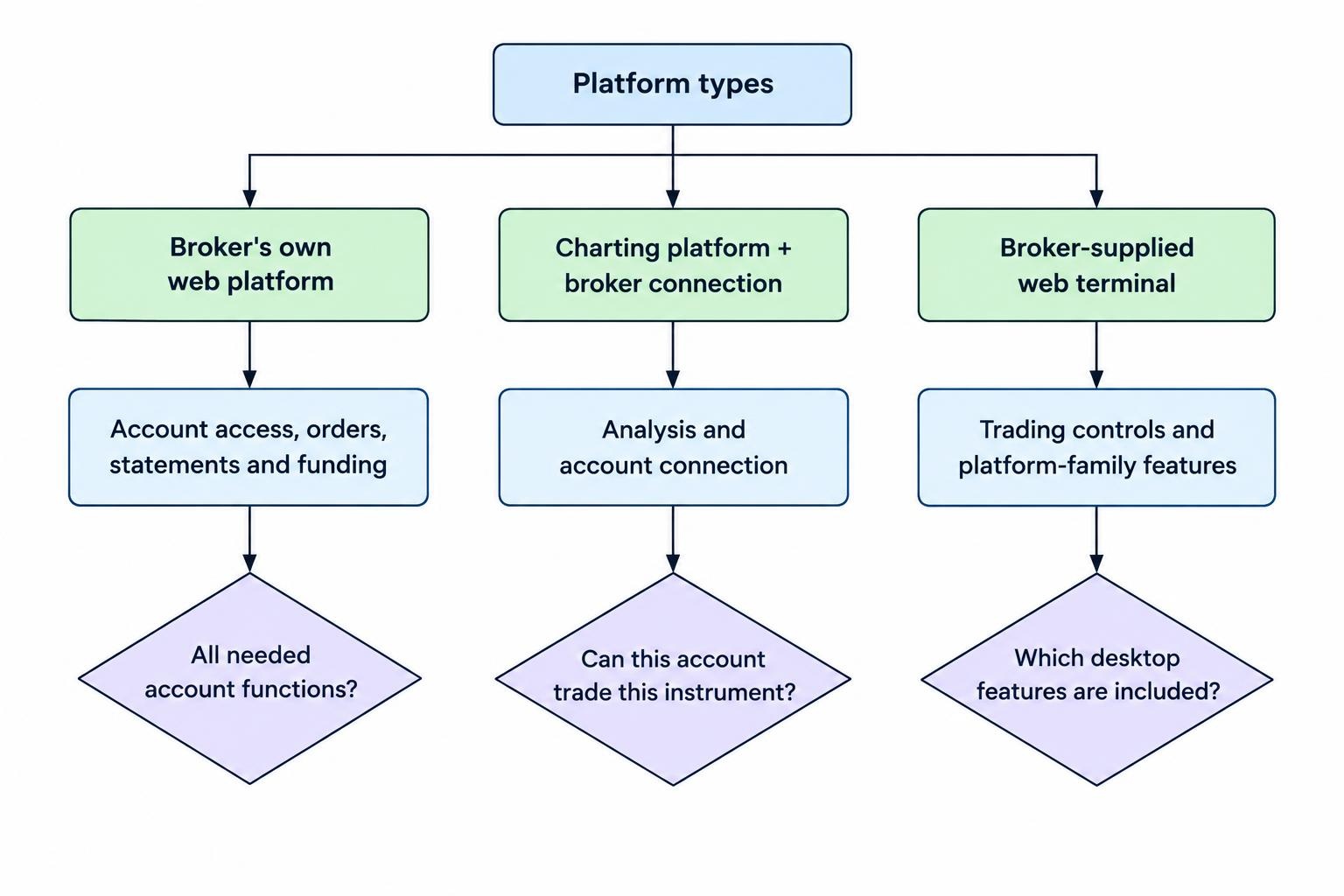
| Platform type | What to evaluate | Main question before committing |
|---|---|---|
| Broker’s own web platform | Account access, order management, statements and funding controls | Does the browser version include every account function you need? |
| Charting platform with broker integration | Analysis tools and the connection to your trading account | Can your account trade the instruments displayed on the chart? |
| Web terminal supplied through a broker | Trading controls within an established platform family | Which desktop features are present in this web version? |
Broker Web Platforms
If you already have a brokerage account, evaluate its own web platform before adding another service. Write down the tasks you perform during a normal session: opening orders, changing quantities, reviewing fills, exporting transactions and checking available funds.
Ask support which browser versions it supports on Linux. “The page opens” is a useful first result, not a compatibility certificate. Also confirm that the account and products are available for your country of residence; browser access is not a substitute for account eligibility.
TradingView and Connected Trading
Treat a charting platform such as TradingView as a candidate for analysis and order entry, not an automatic replacement for your broker’s portal. During evaluation, check the account connection separately from the charts. Confirm the account identifier, instrument mapping and available order controls before considering live use.
Keep the broker’s own account interface available as a separate route. Your evaluation should establish which tasks belong in the charting platform and which still require the broker portal.
MetaTrader Web Terminals
The official MetaTrader 5 web platform documentation explicitly includes Linux and lists browser access, demo and live accounts, chart analysis, and market and pending orders. That makes it a route worth checking when your broker provides an MT5 web terminal.
Do not assume that an existing desktop workflow transfers unchanged. List any custom indicators, scripts or automated strategies you depend on and confirm support individually. If those requirements drive your choice, the guide to running MetaTrader 4 and MetaTrader 5 on Linux covers the broader installation options.
Choose a Browser Before Changing Your Distribution
Choose from the browsers the platform supports, then test on your existing Linux installation. Replacing a functioning distribution should not be the opening move in a browser compatibility investigation.
Chrome has an official Linux installation path, with distribution and processor requirements listed in Google’s Chrome installation requirements. Check those requirements against your machine rather than assuming every Linux package fits every distribution or processor.
Use a stable browser release for the trading account. Keep a second supported browser installed as a diagnostic option, but complete authentication and demo checks before relying on it as a backup.
Install through a trusted distribution channel or the browser developer’s official package. The guide to installing Linux applications with native packages, Flatpak and Snap explains how those delivery methods differ. Avoid collecting unofficial browser builds just to make one troublesome page load.
Create a separate browser profile for trading and keep its extension list short. Treat that profile as a controlled workspace: fewer custom settings to investigate, fewer distractions and a repeatable starting point for testing.
Check the Whole Workflow, Not Just the Charts
A useful compatibility test starts at login and ends with an exported account record. Spend time on the unglamorous controls. A beautiful chart does not compensate for an order ticket that disappears below the screen.
Check text scaling, dropdown menus and confirmation dialogs at your normal desktop resolution. If you use two monitors, move the order window between them and test any difference in scaling. Repeat this with the laptop docked and undocked if both arrangements form part of your routine.
Review the platform’s permissions individually. Test statement downloads, document uploads and any authentication window it opens. If a permission exception is required, apply it to the relevant site rather than relaxing browser settings everywhere.
Check keyboard shortcuts against both the browser and desktop environment. Test them only in a demo account, particularly shortcuts associated with placing or closing trades. Leave confirmation dialogs enabled until the controls are familiar.
Plan browser and operating system maintenance outside active trading sessions, leaving time to restart and check access. The guide to managing Linux security updates covers update planning without turning delayed maintenance into a permanent policy.
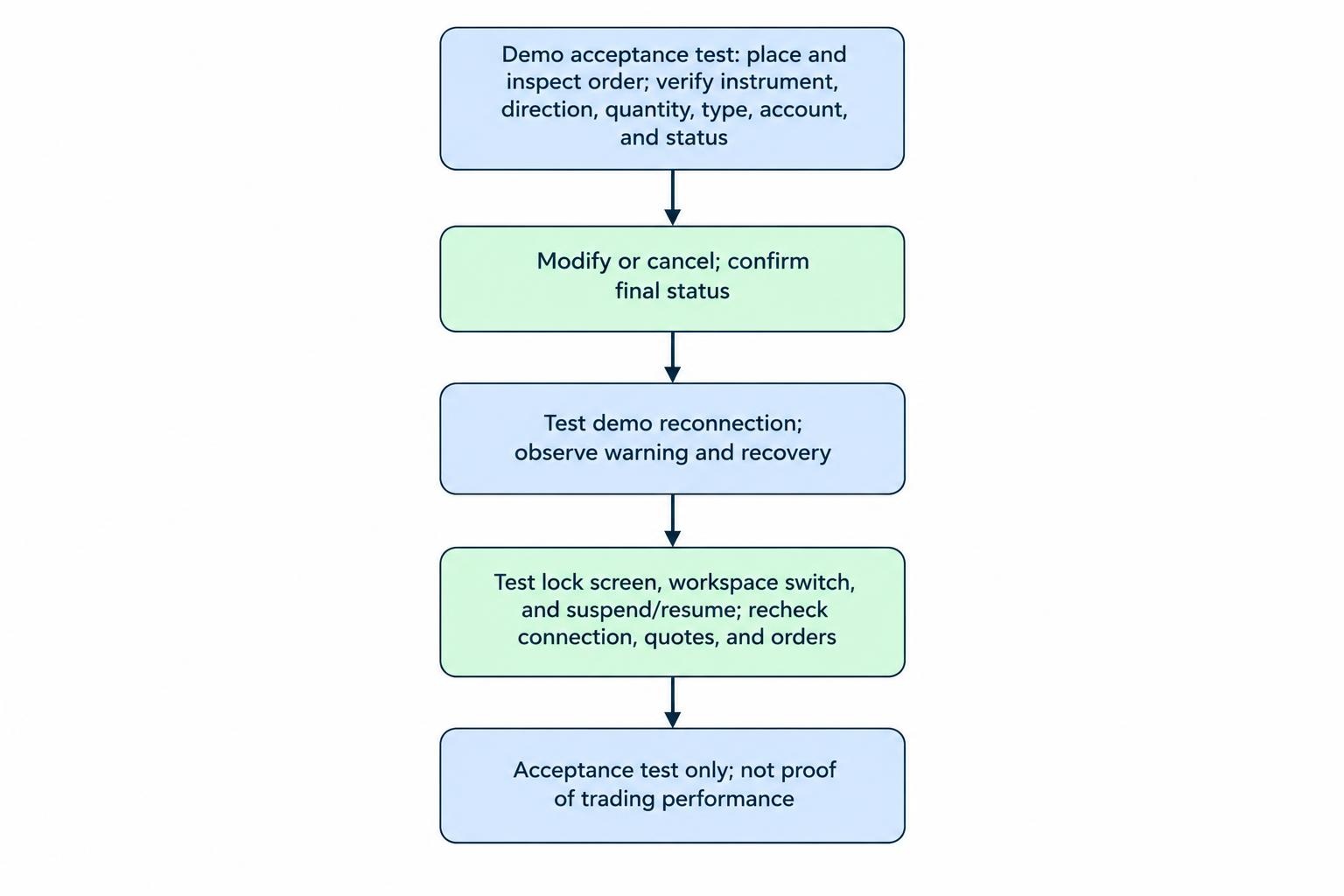
Use Demo Trading as an Acceptance Test
Demo access is useful for testing the interface before money is involved. TradingView’s Paper Trading documentation describes simulated trading with virtual funds, including order entry through an order ticket, charts and depth of market.
Use that environment to test operation, not just strategy results. A profitable simulated trade does not establish that your Linux setup is ready for live account management.
- Place and inspect an order. Check the instrument, direction, quantity, order type and account before submitting. Find its status afterward.
- Modify and cancel. Change a pending order, request cancellation and identify the final status rather than relying on the button click.
- Test reconnection. In a demo account with no live exposure, interrupt the connection briefly. Observe the warning and what happens when access returns.
- Test routine interruptions. Lock the screen, switch workspaces and test suspend and resume. Recheck connection status, quotes and orders afterward.
Record failures with the browser version, Linux distribution, display setup and approximate time. A report that identifies a repeatable action is more useful than “Linux trading is broken.” Avoid putting credentials or full account details in screenshots sent to support.
Separate Market Data Costs from Platform Costs
Check the data entitlement for the instruments you intend to use, not just the subscription name. TradingView separates many exchange data fees from its paid platform plans, as detailed in its market data subscription documentation. A paid charting plan should not be treated as proof that every displayed market has live exchange data.
Before trading, inspect the exchange, symbol and any delayed data label. Check whether the chart and order ticket refer to the same instrument and trading session. Ask about unexplained differences instead of treating them as a browser fault.
Compare the cost of your proposed setup as a whole: platform subscription, required data, trading charges and any backup access costs. Do not buy an annual charting subscription before confirming that the account connection and required instruments work.
For a slower manual workflow, focus your evaluation on readable account records and dependable order management. For frequent intraday use, give more testing time to quote status, order controls and reconnect behavior.
Protect the Account and the Trading Browser
Use a separate password for each financial account and enable the strongest authentication method the service offers. Where supported, consider FIDO2/WebAuthn authentication. It binds authentication to the legitimate service’s domain and provides phishing resistance; manually entered one-time codes do not provide the same protection. These distinctions are set out in NIST’s authenticator requirements.
Test your chosen authentication method on the actual Linux machine before depending on it. Include the second browser in that test and store recovery material securely away from the trading laptop. A backup method that has never been tried is still a proposal.
Bookmark the verified account address. Avoid signing in through advertisements, unsolicited messages or links supplied by someone claiming to be support. Do not install a remote access tool or browser extension simply because a supposed account representative requests it.
Use a locked personal account on the computer and avoid shared machines for trading. Keep sensitive exports in protected storage, and decide what needs retaining rather than leaving years of statements in the Downloads folder.
Troubleshoot Performance Without Removing Safeguards
When charts stutter or controls stop rendering correctly, compare the same demo workflow in the second supported browser. Keep the layout and instrument selection consistent so the comparison is useful.
Firefox’s extension and hardware acceleration troubleshooting procedure provides a controlled test: Troubleshoot Mode temporarily disables extensions, the custom theme and hardware acceleration. If the fault disappears, investigate those components individually rather than making several permanent changes at once.
Treat acceleration changes as diagnostic steps, not universal performance fixes. If testing points to graphics problems, use the guide to installing and troubleshooting Linux graphics drivers rather than installing random driver packages.
Reduce the workspace during diagnosis: fewer charts, fewer indicators and no unrelated video tabs. Repeat the same actions after each change.
Inspect system load while reproducing the fault. The guide to monitoring CPU, memory, disk and network usage on Linux can help you gather evidence before blaming the browser, connection or platform. Do not disable certificate checks or browser security controls to make a trading page work.
Plan for Lost Connections and Uncertain Orders
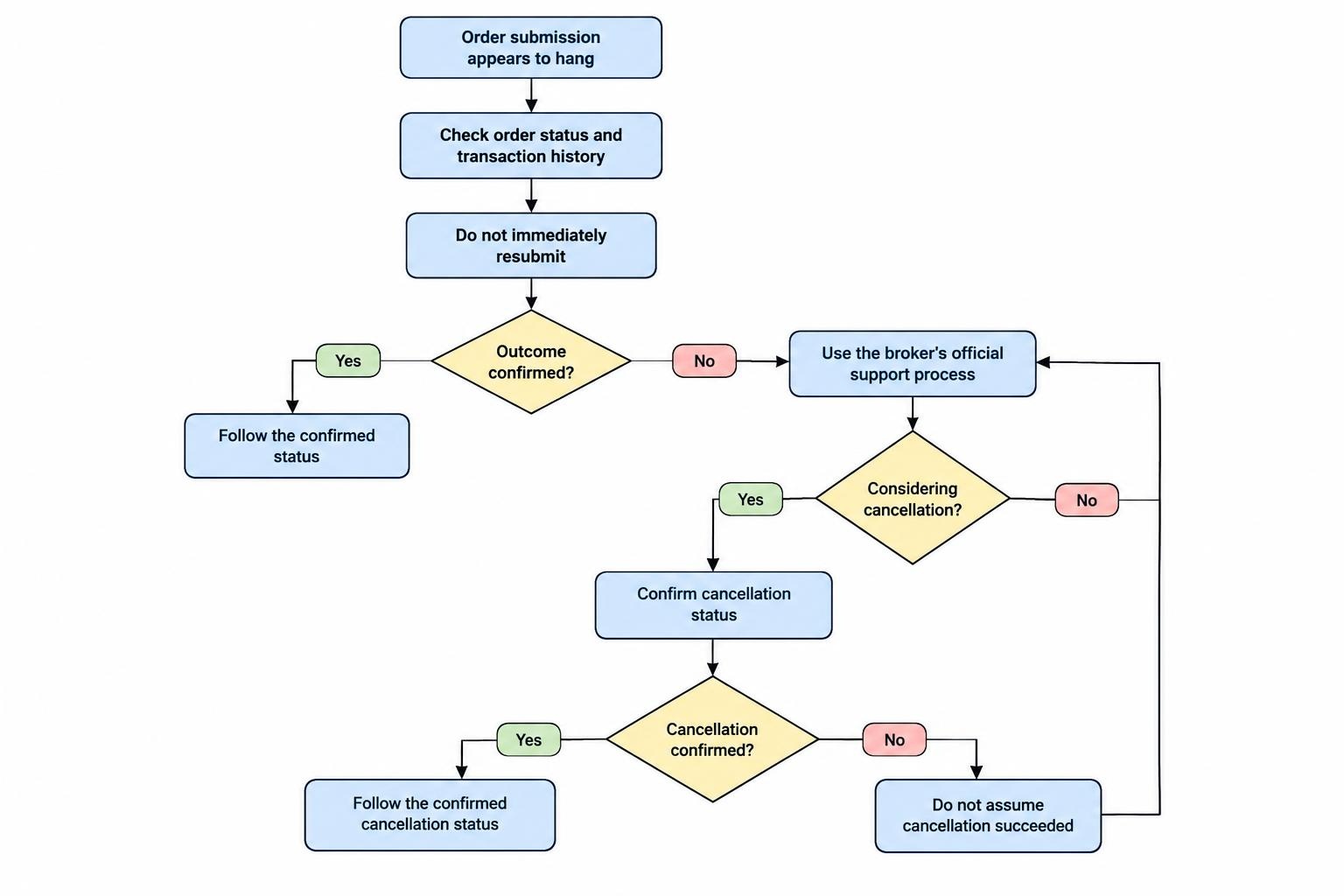
If an order submission appears to hang, do not immediately submit it again. Check order status and transaction history, then use the broker’s support process if the result remains uncertain. A cancellation request also needs a confirmed outcome. The SEC’s online investing guidance warns that assuming an order failed, or assuming a cancellation succeeded, can result in duplicate trades.
Before live use, ask where each protective or conditional instruction runs. Have the broker distinguish orders it has accepted from features that require an active application session. Record what happens if you close the tab, lose connectivity or shut down the computer.
Prepare a second access route, such as an authenticated mobile device using a separate connection. Record the broker’s official contact process outside the trading browser. Test backup access without sending duplicate instructions from multiple devices.
Keep recoverable copies of locally stored records and workspace notes. The guide to backing up and restoring a Linux desktop covers that preparation. Do not mistake a local backup for an authoritative record of current orders; recheck the account after reconnecting.
When Browser Trading Is the Right Fit
Consider browser trading when your required workflow is manual, the provider supports your browser, and the complete account process passes your tests. Choose based on confirmed functions rather than the longest feature list.
If the workflow depends on local automation, custom desktop plugins or tools absent from the web version, compare native Linux trading and charting software before forcing everything into a browser tab.
The practical standard is straightforward: you can authenticate, inspect data status, place and verify orders, retrieve records and recover access. Test those tasks first. Appearance can wait; account control cannot.